Your Mac stays up while work runs.
Vigil is a small candle in your menu bar. Light it for an hour, or point it at what’s actually running — a Claude Code session, a build, a render — and your Mac stays awake until it finishes, then sleeps again and tells you.
Pay once · macOS 14+ · Apple silicon & Intel · No special permissions · Already bought? Download Vigil
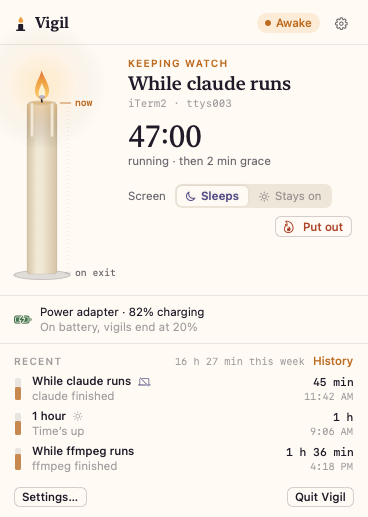
A working model, not a video — sample data. The pretend Mac’s clock runs a minute every second (or ten), its terminal and battery are made up, and nothing here keeps your real Mac awake. The shortcuts also work without the modifiers.
- Pay once, no subscription
- No account
- No special permissions
- Always turns sleep back on
- 14-day refund
Awake exactly as long as the work.
Not “caffeinate forever and hope you remember”. Vigil ends on its own, when the time’s up, the task is done, or the battery says so.
Timed vigils
30 minutes, an hour, three hours, until a time or until you stop. Add 30 minutes with one click.
While this runs
Pick a terminal tab or any of your running tasks. Your Mac stays awake until it exits, waits a short grace period, then sleeps.
Finish notifications
“claude finished · 42 min”, waiting for you when you come back to your desk.
Auto-watch
Lights by itself whenever claude, codex, cargo, xcodebuild or ffmpeg — your list — runs for more than a minute.
Screen on or off
Keep the display lit for a presentation, or let it sleep while the Mac keeps working.
Battery rules
Require the power adapter, end at a battery level you choose, and a hard 10 % floor that always applies.
Closed-lid mode
Keeps a MacBook working with the lid shut. Normal sleep comes back on stop, quit, crash, low battery and heat.
Schedules
Weekdays 9 to 6, Friday-night renders. Putting a scheduled vigil out keeps it off until its window ends.
History
Every vigil, how long it burned and why it ended, with a weekly total.
The wick timeline
A candle that burns down as the vigil runs: now at the flame, the end at the base. How long is left, at a glance.
Comparing keep-awake apps? Read the guide: the best apps to keep your Mac awake
Lid shut. Still working.
Without an external display, macOS sleeps the moment the lid closes, whatever an app asks. Vigil turns that off for the length of a vigil with pmset disablesleep 1, and turns it back on afterwards.
Setting it up asks for your administrator password once and adds a rule that lets only your account run exactly those two pmset commands. You can remove it in Settings. Never put a running MacBook in a bag or sleeve: with the lid closed it can get hot.
- When the vigil endsTime’s up, the task finished, or you put it out.
- When you quitSleep is restored before Vigil exits.
- On low battery or heatClosed-lid vigils on battery are capped at 1–4 hours, and end earlier when macOS reports the Mac is getting hot.
- After a crash or force quitAt the next launch, and within seconds via a small watchdog.
Every screen, light and dark.
Screenshots straight from Vigil, with sample tasks and history. Flip between light and dark.


What stays. What connects.
Vigil keeps your Mac awake with the standard macOS power assertion — the same one video players use.
Stays on your Mac
Everything Vigil sees and remembers.
- ✓Your running processesName, arguments and terminal tab, only to offer them in the list
- ✓Your terminal’s contentsNever read: no screen, scrollback or files
- ✓History and settingsKept on your Mac
- ✓How you use itNo analytics or tracking in the app
Connects
Two small requests, over HTTPS.
- 1License checkYour key and an activation ID, to Dodo Payments
- 2Update checkApp name and version, to
vigil.newmac.app
The full list, for every app, is in the privacy policy.
Pay once. Keep it.
One payment, no subscription. Choose how many Macs you’ll use Vigil on.
3 Macs
For your home and work Macs
Checkout opens soon. The buttons above go live here the moment it does.
Every plan includes
- One payment, no subscriptionEvery feature, yours to keep.
- License key by emailSent the moment you pay. Activate in one click.
- Move between MacsUse “Deactivate this Mac”, then activate on the new one.
- Free updatesNew versions install themselves.
- 14-day refundNot for you? Read the refund policy.
- macOS 14 or laterNative on Apple silicon & Intel.
Already bought? Download Vigil · .zip · Install help
Questions, answered.
Does it need special permissions?
No. Keeping the Mac awake uses the standard macOS power assertion, and the task list reads only your own processes. Notifications are asked for the first time you watch a task. Closed-lid mode is the one exception: setting it up asks for your administrator password once.
How does closed-lid mode work, and is it safe?
Without an external display, macOS sleeps the moment the lid closes. Vigil turns that off for the length of a vigil with pmset disablesleep 1 and turns it back on afterwards — when the vigil ends, when you quit, on low battery or heat, at the next launch if Vigil ever crashed, and within seconds via a small watchdog if it’s force-quit. The setup adds a rule that lets only your account run exactly those two pmset commands, and you can remove it from Settings. Never put a running MacBook in a bag or sleeve.
Will it drain my battery?
Only as much as you let it. You can require the power adapter, end vigils at a battery level, and closed-lid vigils on battery are capped at 1–4 hours. Every vigil ends at 10 % regardless.
Can it see what I’m doing in my terminal?
It sees which of your processes are running (name, arguments, which terminal tab) to offer them in the list. It doesn’t read your screen, your scrollback or your files.
Does it work with an external display?
Yes. With a display, keyboard and power connected, macOS already stays awake with the lid closed, so you won’t need closed-lid mode there.
What doesn’t it do?
It doesn’t stop you from choosing Sleep in the Apple menu (that ends the vigil), it doesn’t wake a sleeping Mac on a timer, and it doesn’t explain why your Mac woke up overnight — that’s what Nightwatch is for. Vigil’s vigils show up in Nightwatch as “Vigil: …”, so the two work well together.
macOS says it can’t verify the developer.
Vigil is distributed directly from this website. Here’s how to open it the first time.
Is there a free trial?
No. Use the working model at the top of this page to see exactly how Vigil works. If it turns out not to be for you, you can ask for a refund within 14 days — see the refund policy.
Can I use Vigil on more than one Mac?
Yes. The 3-Mac and 5-Mac plans cover several Macs with one license key. Any license can move to a new Mac: choose “Deactivate this Mac” in Vigil on the old one, then activate on the new one.

Light it, and walk away.
Your Mac stays up while the work runs, then sleeps and tells you it’s done. Pay once and keep it.